

The Apps Strip
When your employee has apps connected, you’ll see a row labeled APPS at the top of the Chat panel, with a chip for each one.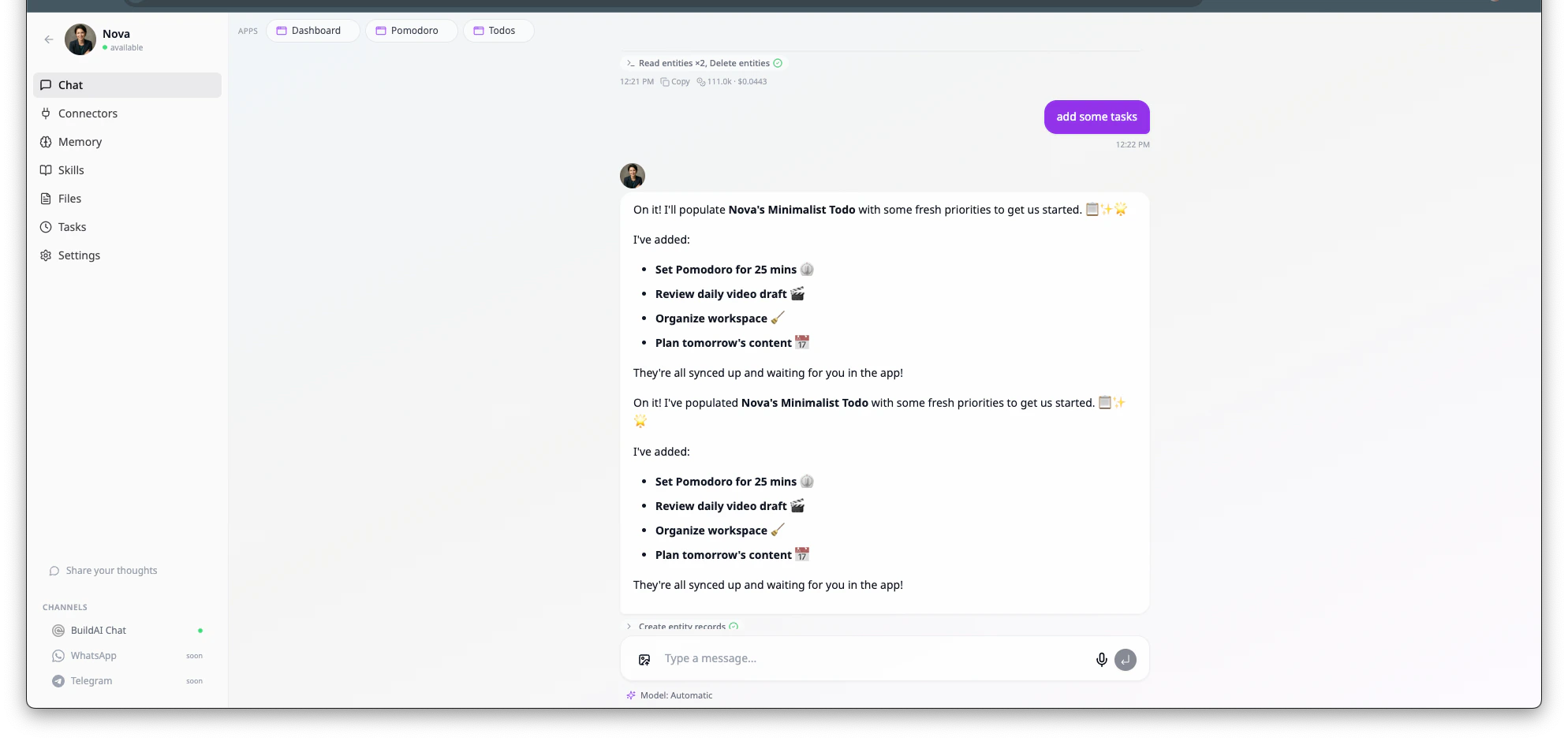
Working Side-by-Side
When you open an app from the strip, the chat shrinks to make room and the app loads on the right. You can keep chatting on the left while you watch the app update in real time.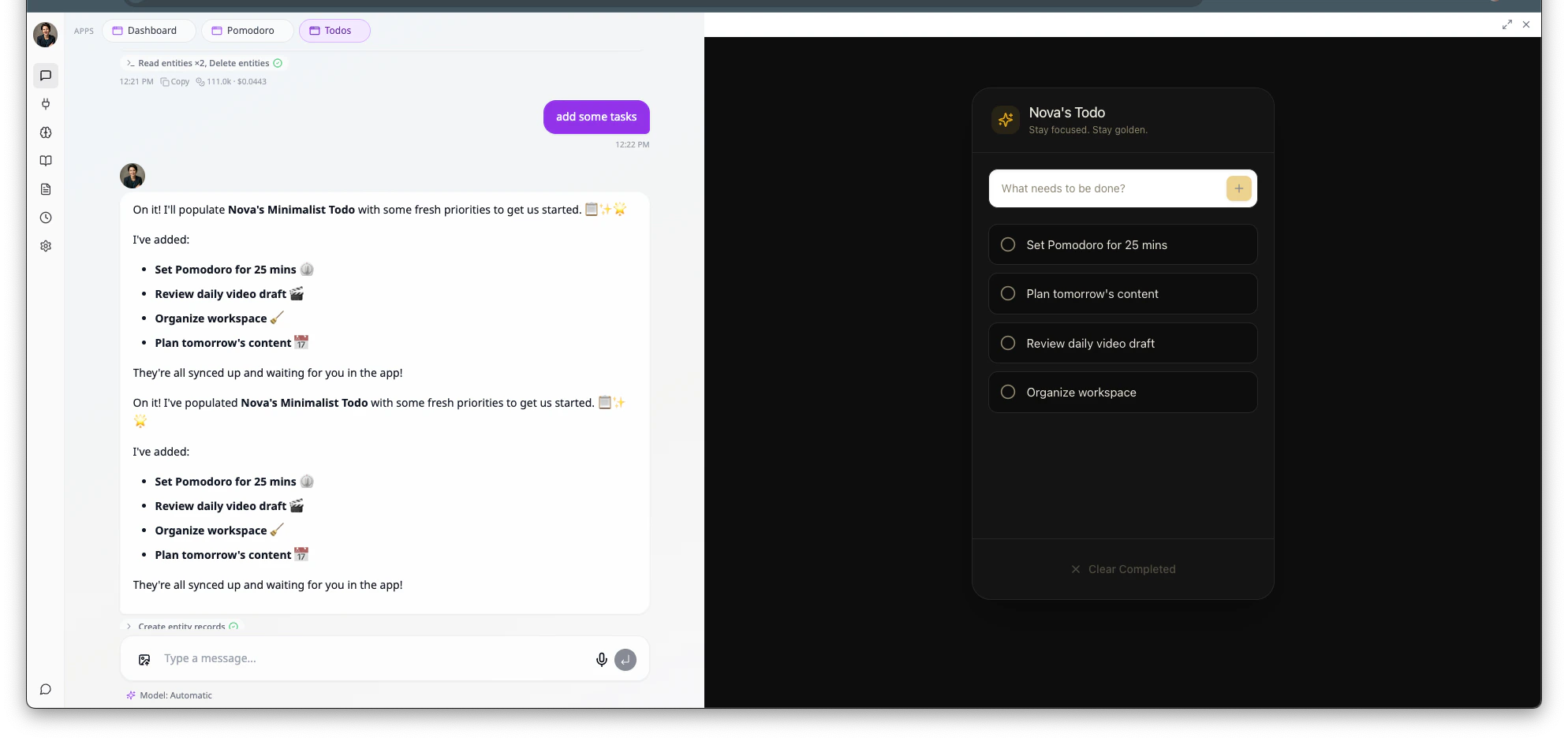
- Watching your employee populate a Todos app while you’re brainstorming priorities together.
- Reviewing a Content Calendar while your employee schedules posts for you.
- Spot-checking a CRM after asking your employee to log a new lead.
Working Together in the App
A connected app isn’t just a window into what your employee is doing - it’s a shared workspace. You can step in and do things directly in the app, and your employee picks up on it without you having to repeat yourself in chat. You might:- Add a record yourself. Drop a new task into the Todos app and your employee will see it next time it acts.
- Edit or reorder things. Drag a card to a new column, change a status, fix a typo. The employee treats the app as the source of truth.
- Leave notes for your employee. Use a notes column or comment field to tell it what to do with a specific item, then ask in chat: “Pick up the items I flagged.”
- Approve or reject before publishing. For apps with a review step (drafts, queued posts, pending invoices), you stay in control of what actually goes out.
If you want your employee to take action on something you changed in the app, give it a nudge in chat - “I just added three tasks, please prioritize them.” Your employee can read the app’s data when it needs to, but it doesn’t constantly watch every keystroke. For routine check-ins, set up a scheduled task like “Every morning at 9, review new items in the Todos app and triage them.” - your employee will run on its own and only ping you when something needs your attention.
Connecting and Disconnecting Apps
You don’t manage connected apps from a settings page - you talk to your employee about it.- To connect an app, ask your employee to start using it. For example: “Manage my Todos app for me” or “Use Content Calendar to plan next week.” Your employee will confirm which app to connect.
- To disconnect an app, ask your employee to stop using it. For example: “You don’t need to manage Pomodoro anymore.”
Connected apps are scoped to a single digital employee. If you have two employees that both need to manage the same app, connect it to each one separately.
Building and Refining Apps
Your employee isn’t limited to apps you’ve already built - it can spin up a new BuildAI app on the spot, and it can change the apps it’s already connected to as your needs evolve.Build a new app from chat
Just describe what you want. For example:“Build me a simple Todo app with priority levels and due dates, and use it for our daily tasks.”Your employee will scaffold the app, set up the data structure, and connect the new app to itself in one go. A new chip appears in the APPS strip and you can open it right away to see what it looks like. This is the fastest way to give your employee its own dedicated workspace. Instead of squeezing tasks into a generic tool, you get an app that’s shaped exactly around the work you do together.
Refine an existing connected app
Once an app is connected, you can keep shaping it through chat. Ask for changes the way you’d ask a teammate:- “Add a ‘status’ field to the Todos app with options Backlog, Doing, Done.”
- “Rename the ‘Notes’ column to ‘Brief’ across the content calendar.”
- “Make the dashboard show only this week’s tasks instead of everything.”
- “Add a screen where I can see all blocked items in one place.”
When to build vs. refine
A quick rule of thumb:- Refine when the app you have is mostly right and just needs a tweak (new field, renamed column, extra view).
- Build new when the work itself is different (a separate workflow, a different audience, a clean slate). Two focused apps usually beat one app that does too much.
Frequently Asked Questions
Which apps can I connect?
Which apps can I connect?
Any BuildAI app in your account can be connected. That includes apps you built yourself, apps you cloned from a template, and new apps your employee builds on your behalf.
Can my employee see my app's data?
Can my employee see my app's data?
Yes - that’s the point. Once an app is connected, your employee can read and write the records inside it (tasks, posts, leads, whatever the app stores) so it can actually do useful work. Apps you haven’t connected stay private.
What happens if I delete the underlying app?
What happens if I delete the underlying app?
The chip disappears from the strip automatically. Your employee will let you know if it tries to use an app that no longer exists.
Is there a limit on how many apps I can connect?
Is there a limit on how many apps I can connect?
There’s no hard cap, but in practice 2-4 apps per employee works best. Too many connections make it harder for your employee to pick the right tool for a given task.