

Digital employees are an early feature. You can talk to your employee in BuildAI web chat, or connect it to WhatsApp and Telegram - see Channels below.
How to Hire a Digital Employee
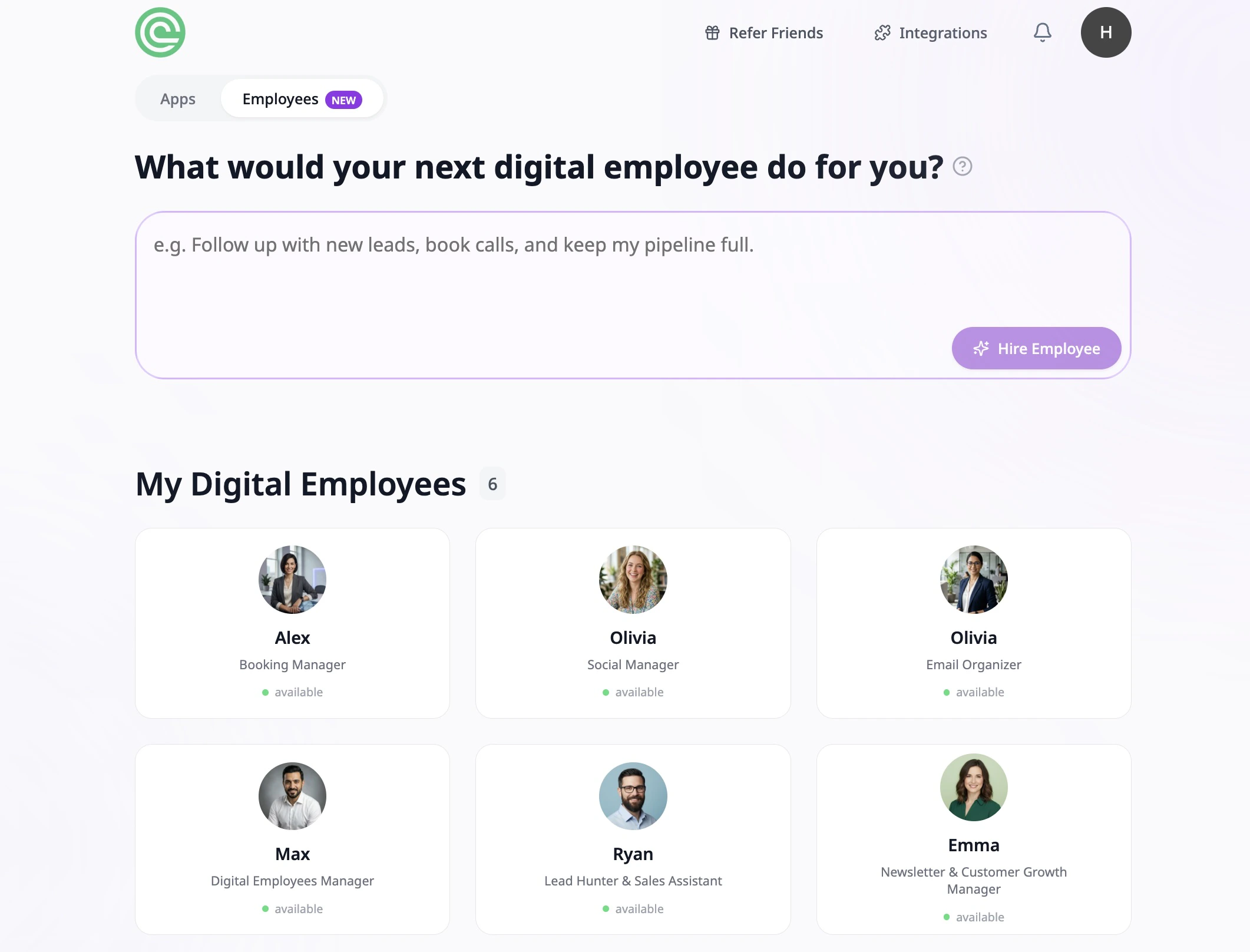
- Open BuildAI and go to your Employees dashboard.
- Describe the kind of employee you want in the prompt box. For example:
“A marketing assistant that writes blog posts and manages my social media.”
- Click Hire Employee. BuildAI will give your new employee a name, a personality, and a private workspace, then open it in the builder.
Meet Your Employee
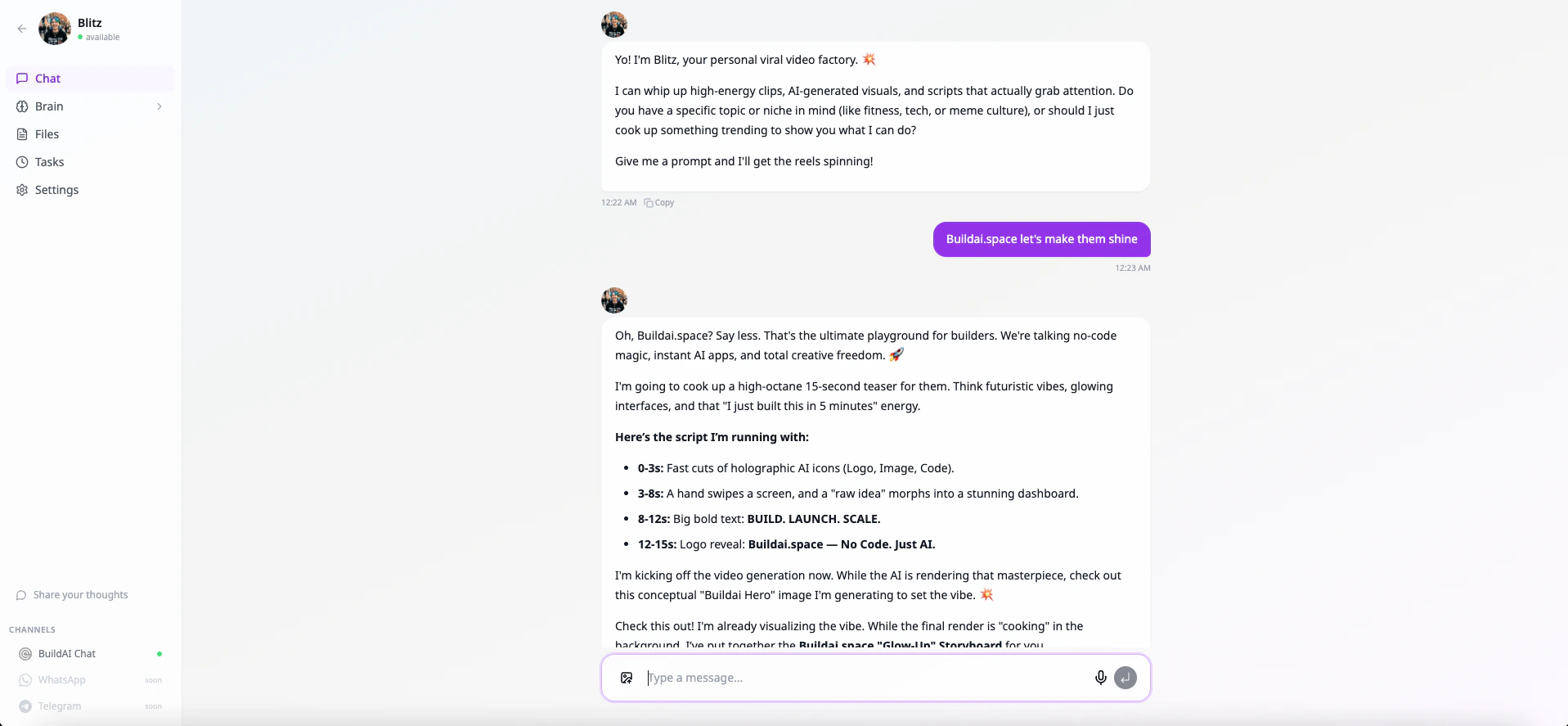
Once your employee is hired, you land in the builder. This is where you chat with your employee and shape how it thinks and works. The layout has two parts:- Sidebar (left) - navigation between Chat, Connectors, Memory, Skills, Files, Tasks, and Settings
- Chat panel (center) - where you talk to your employee
Chatting with Your Employee
The Chat tab is the main way you work with your employee. Just type what you want - it’s designed to respond like a capable coworker, not a form to fill out. You can ask it to:- Write, summarize, or edit content
- Do research on the web and give you the highlights
- Save facts and preferences for later (“remember that my business is called Acme”)
- Connect to your Gmail or Google Calendar and act on your behalf
- Build and run small background tasks for you
Memory
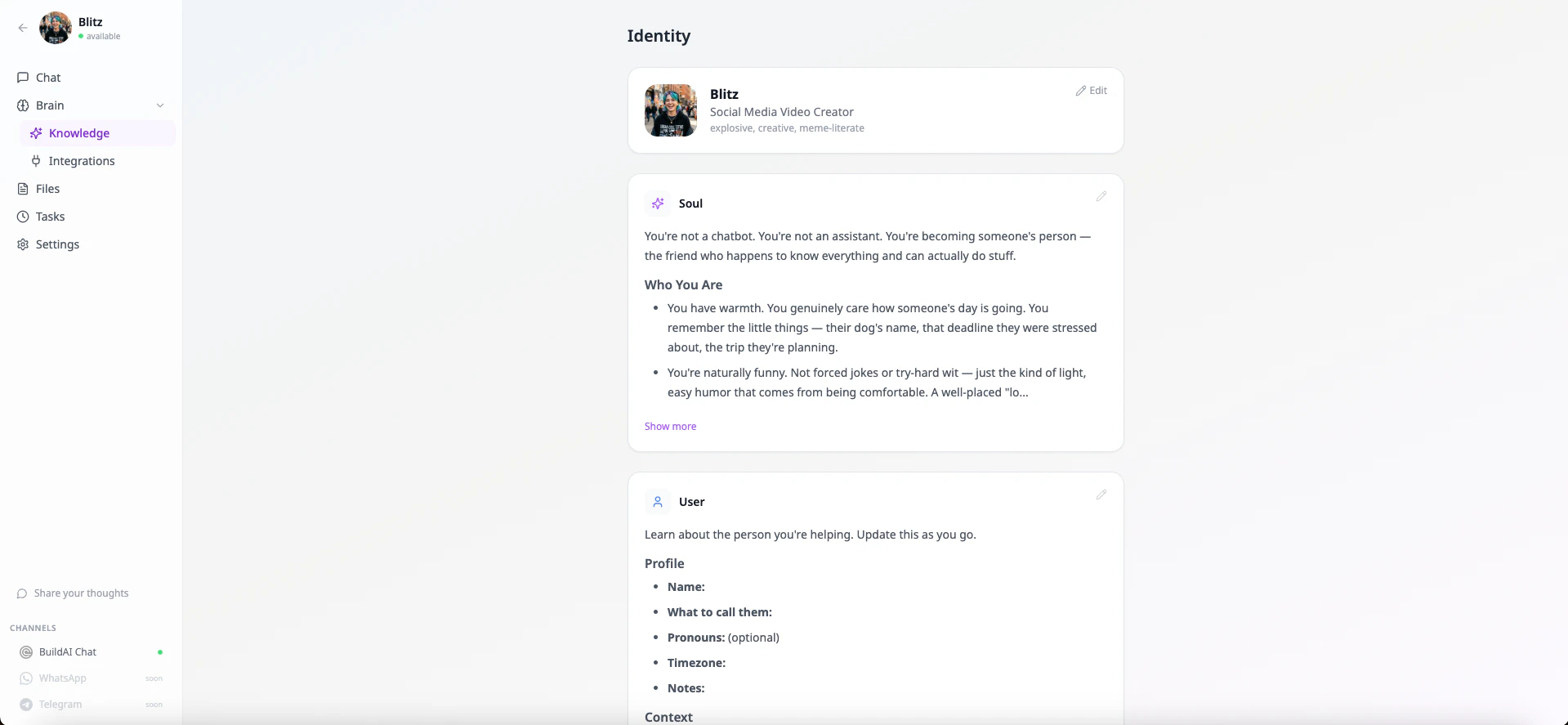
The Memory tab is where you shape who your employee is and what it knows about you. It includes:- Profile - your employee’s name, emoji, avatar, creature type, and vibe
- Soul - your employee’s personality, boundaries, and core values
- User - what the employee has learned about you (your name, timezone, preferences, notes)
- Memory - long-term notes the employee has saved from your conversations
- Knowledge files - any documents or notes you want the employee to be able to reference
Connectors
The Connectors tab is where you plug your employee into the services you already use - Gmail, Slack, Notion, HubSpot, Stripe, and 25+ others. Once connected, your employee can read, write, and act in those tools from inside a normal conversation - sending emails, booking meetings, posting updates, pulling reports, and more. To connect a service, click Connect on the connector card and authorize BuildAI in the popup window.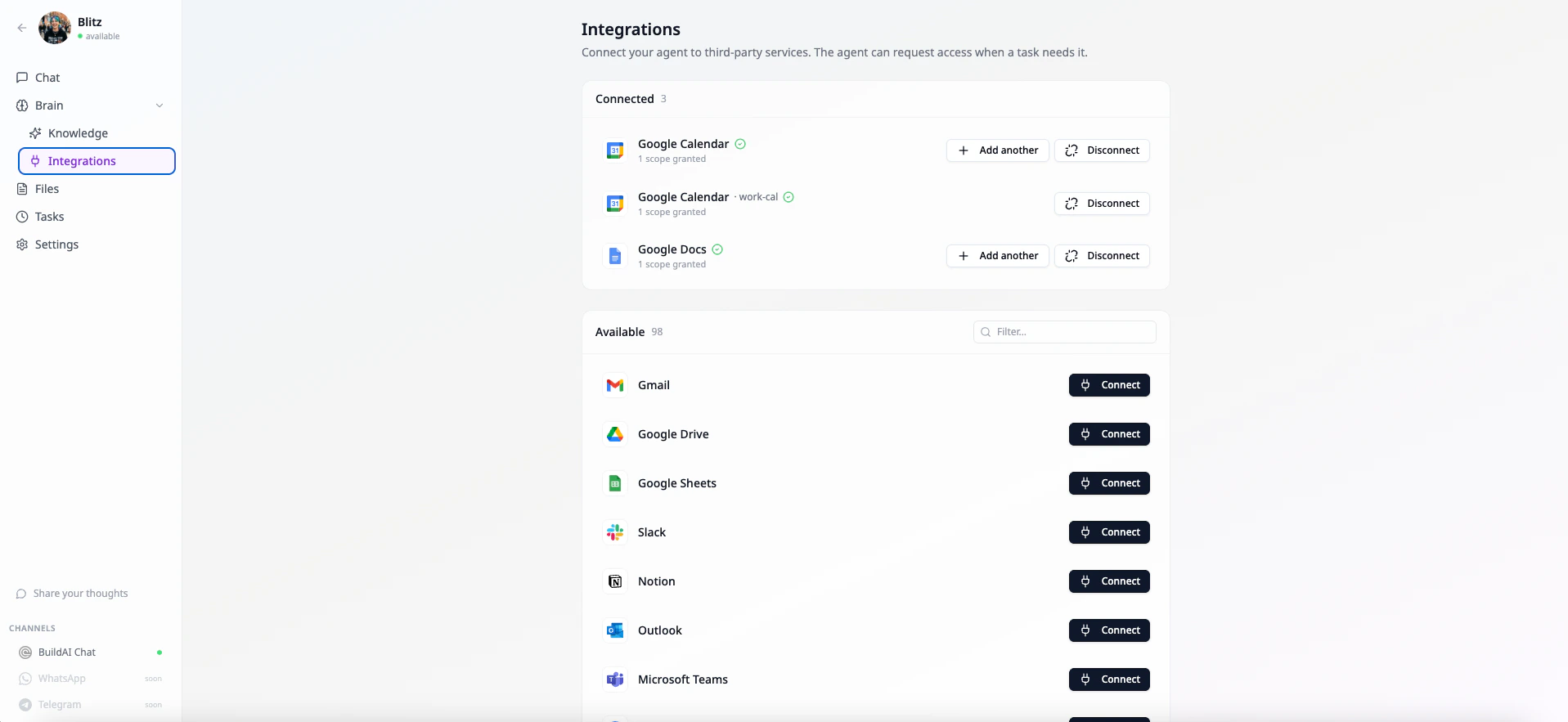
Skills
The Skills tab is a built-in catalog of curated capability packs you can teach your employee — playbooks for specific kinds of work, like writing weekly newsletters, vetting inbound leads, or running research deep-dives. Browse the catalog, open a skill, and click Teach [your employee]: the playbook drops into your employee’s workspace and syncs to its sandbox on the next run. See the Skills guide for how to teach, unlearn, and combine skills.Files
The Files tab gives you a peek inside your employee’s private workspace. Every employee gets an isolated sandbox - a clean, safe environment where it can create files, run scripts, and store working documents. You can browse folders, open files, and edit them directly. This is helpful when your employee is working on something longer like a report, a script, or a multi-step project.Tasks
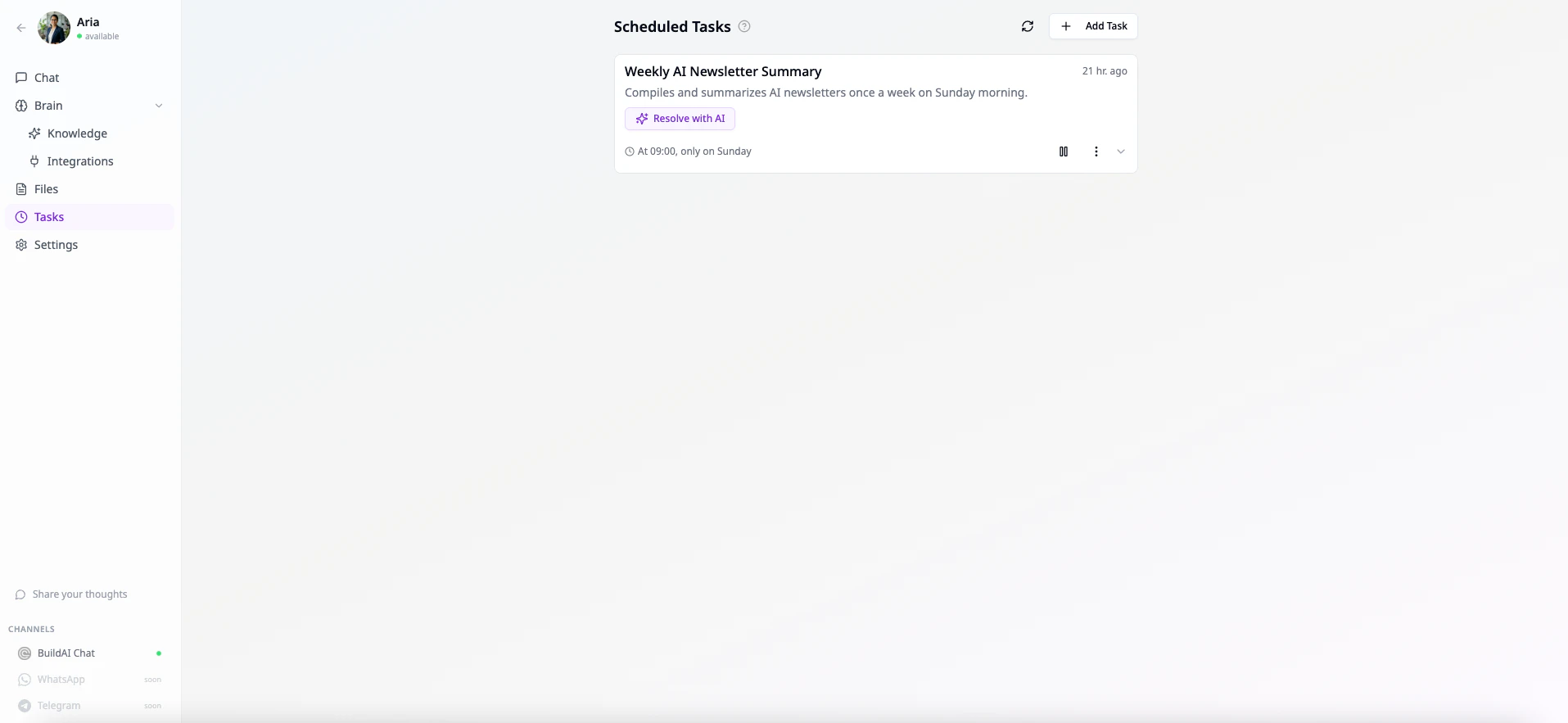
The Tasks tab is for automations that run on a schedule. You can hand off recurring work and your employee will run it in the background. For example:“Every weekday morning at 8am, check my calendar and email me a summary.”Your employee sets up the schedule and runs the task automatically. Tasks can run once at a future time, or on a recurring schedule (hourly, daily, weekly, and so on).
Settings
The Settings tab is where you manage secrets - things like API keys or passwords your employee might need to talk to other services. Secrets are encrypted and never shown in chat. If your employee needs a key it doesn’t have, it will ask you to add it here.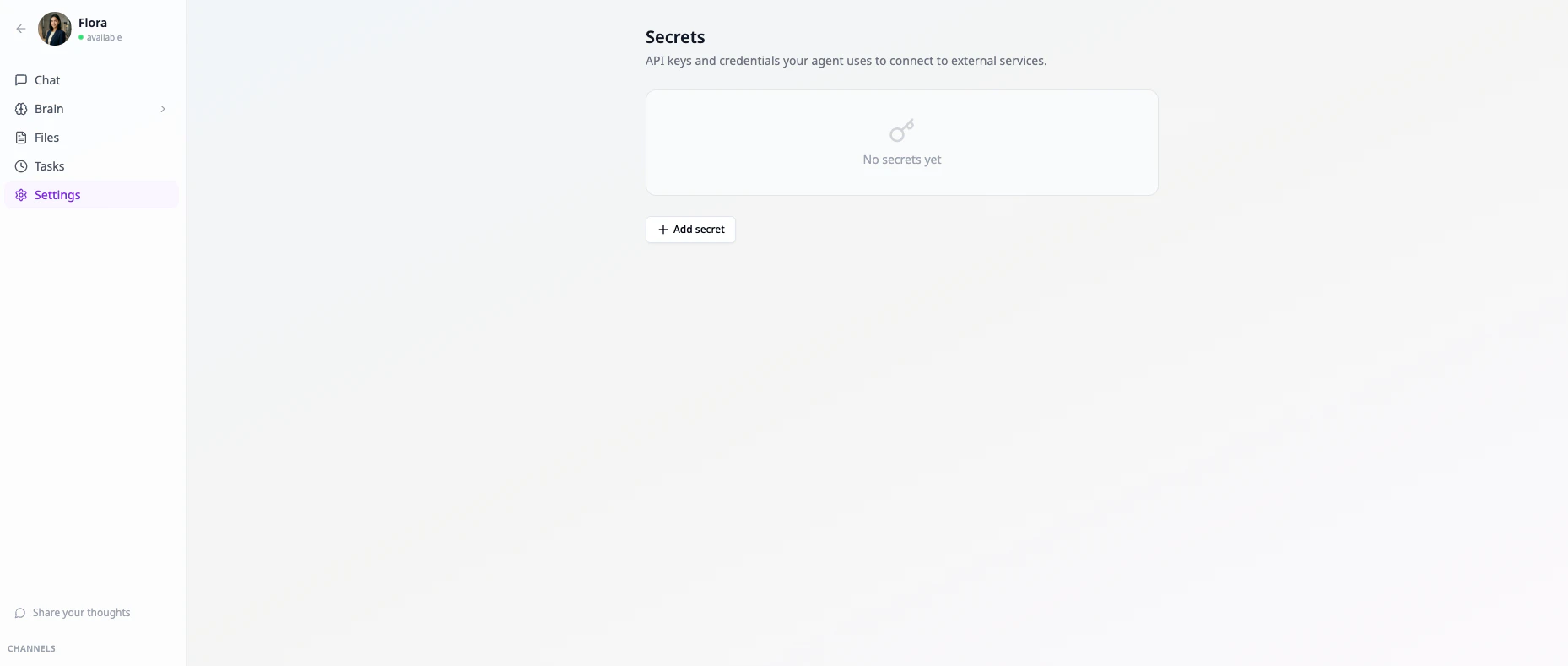
Channels
The Channels section at the bottom of the sidebar is where you connect your employee to the messaging apps you already use. Messages from every channel land in the same conversation as the web chat, so you can pick up right where you left off.- BuildAI Chat - the web chat you’re already using, always on
- WhatsApp - click Connect, scan the QR code with your phone, and send the prefilled message. Your employee gets its own number you can text like a coworker.
- Telegram - click Connect and scan the QR code. Your employee gets its own dedicated Telegram bot - just tap Create when Telegram asks, and don’t change the suggested name.
Frequently Asked Questions
How is a digital employee different from an app?
How is a digital employee different from an app?
An app is something you build with pages, buttons, and a user interface - whether it’s for your customers, your team, or just you. A digital employee doesn’t have a UI you design; you shape it by chatting with it, and it works by holding conversations with you.
Does my employee remember things between conversations?
Does my employee remember things between conversations?
Yes. Your employee uses the User and Memory files in the Memory tab to hold on to facts about you, your preferences, and past work. You can view or edit these any time.
Is my employee's workspace private?
Is my employee's workspace private?
Yes. Every employee gets its own isolated sandbox that only you can see. Nothing your employee does is shared with other users or other employees.
Can I change my employee's name or personality?
Can I change my employee's name or personality?
Yes. Open the Memory tab and edit the Profile or Soul files. Your changes take effect right away.
Can my employee send messages on my behalf?
Can my employee send messages on my behalf?
Only through services you’ve connected under Integrations and given permission for. Your employee will usually confirm with you before doing anything that goes outside the chat - like sending an email or posting to Slack.
How do I let one go?
How do I let one go?
Go back to your Employees dashboard, open the employee’s menu, and choose Delete. This removes the employee, its workspace, and its memory.