

buildai.space or your own full domain.
Step 1: Access Your BuildAI.Space Dashboard
- Log in to your BuildAI.Space dashboard.
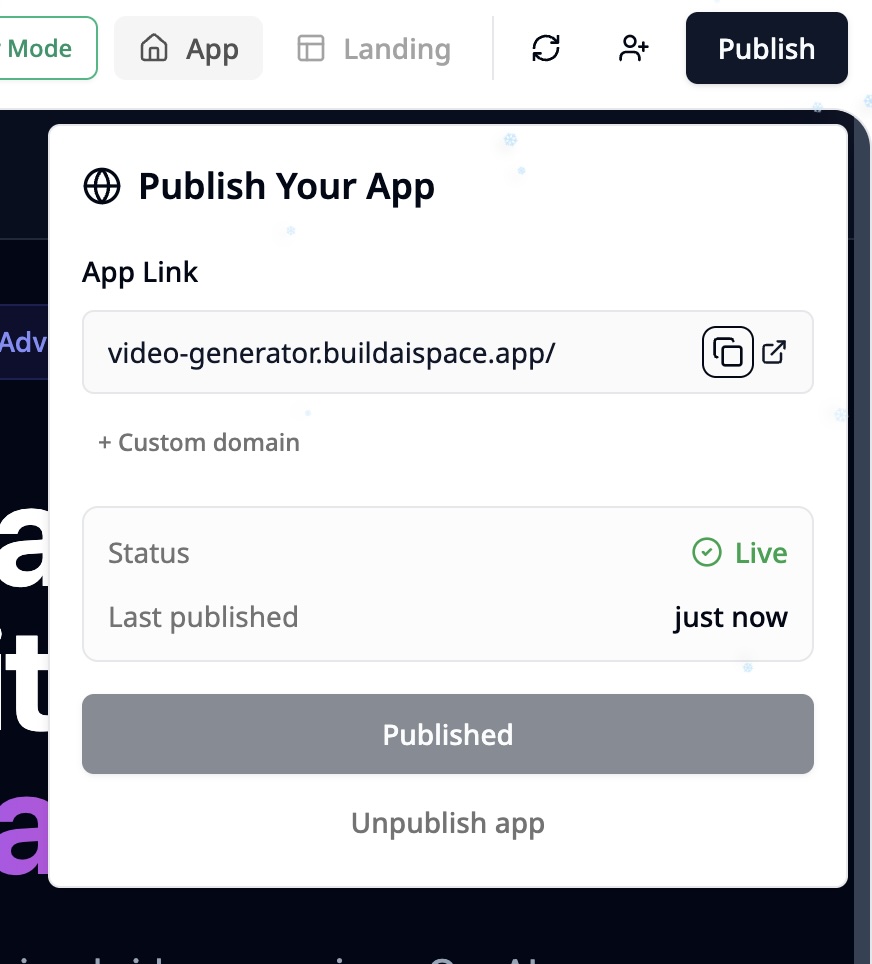
- Click the Publish button in the top-right corner.
- In the Publish Your App popup, you’ll see your default app URL (e.g.,
video-generator.buildaispace.app/).
Step 2: Add Your Custom Domain
- Click + Custom domain below the default URL.
-
Enter your custom domain in the input box:
-
For a subdomain on
buildai.space:
Enter just the subdomain prefix (e.g.,yourapp). The system will automatically append.buildai.space. No DNS configuration is needed for this option.
Example:yourapp.buildai.space -
For a full domain or external subdomain (e.g.,
yourdomain.comorapp.yourdomain.com):
You will need to configure DNS records with your domain provider. Follow the instructions below.
-
For a subdomain on
Step 3: Configure DNS Records with Your Domain Provider
To connect your full domain or external subdomain to BuildAI.Space, you must add specific DNS records via your domain registrar or DNS provider dashboard.DNS Records Overview
Adding DNS Records
-
If using a subdomain on your own domain (e.g.,
app.yourdomain.com): Add a CNAME record:Replaceappwith your chosen subdomain prefix if different. -
If using a full domain (e.g.,
yourdomain.com): Add an A Record:The@symbol represents the root domain.
Step 4: Add DNS Records at Your Domain Provider
Here’s how to add DNS records at popular domain registrars:GoDaddy
- Log into your GoDaddy account.
- Navigate to My Products → Domains → choose your domain → click DNS.
- Click Add to create a new DNS record.
- Select the appropriate Record Type (CNAME or A Record).
- Enter the Name and Value as specified in Step 3.
- Set TTL to 1 hour.
- Save your changes.
Cloudflare
- Log into Cloudflare and select your domain.
- Go to the DNS tab.
- Click Add record.
- Choose the correct Record Type (CNAME or A).
- Enter the Name and Value from Step 3.
- Set Proxy status to DNS only (gray cloud icon).
- Save the record.
Namecheap
- Log into your Namecheap account.
- Go to Domain List, find your domain, and click Manage.
- Navigate to the Advanced DNS tab.
- Click Add New Record.
- Select the correct Record Type.
- Fill in the Host (Name) and Value fields from Step 3.
- Set TTL to Automatic.
- Save your changes.
Other Providers
- Log into your domain registrar or DNS provider dashboard.
- Locate the DNS management or domain settings section.
- Add the DNS record(s) exactly as specified in Step 3.
- Save your changes.
Step 5: Verify Your Domain Setup
- DNS propagation may take 5–15 minutes, but can sometimes take up to 48 hours.
- Return to your BuildAI.Space dashboard.
- Click the Refresh button next to your custom domain entry.
- If you see “Valid Configuration”, your domain is successfully connected and live!
Quick DNS Reference Summary
Troubleshooting & Tips
- Subdomain on
buildai.spacerequires no DNS setup. Just enter your subdomain prefix and BuildAI.Space handles everything. - Subdomains on your own domain (e.g.,
app.yourdomain.com) require a CNAME record pointing tocname.vercel.pub. - Full domains require an A Record pointing to
76.76.21.21. - DNS settings missing or unclear? Contact your domain provider’s support for assistance.
- “Invalid Configuration” shows up? Wait a bit longer for DNS propagation and click Refresh again.
- New to custom domains? Starting with a subdomain under
buildai.spaceis the quickest way to get your branded URL live without DNS management.
🎉 Congratulations! Your app is now live on your custom branded URL through BuildAI.Space. Share your unique link and impress your visitors with your personalized web presence.